Python: Convert image files to WebP
WebP (Web Picture) files #
WebP is a modern image format developed by Google specifically for the web. Think of it as combining the best features of JPEG and PNG into one lightweight package, offering high visual quality at significantly smaller file sizes. It has instant rendering (especially on mobile), lower bandwidth usage across every hosting platform, dynamic or static.
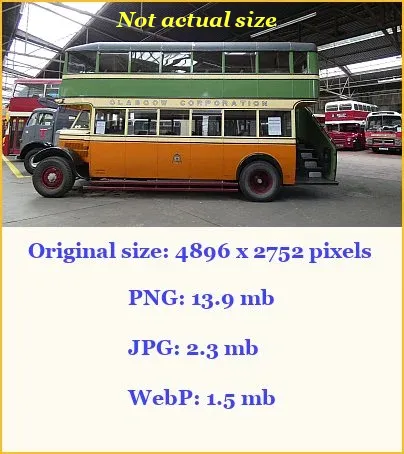
- PNG (13.9 MB): Best for preserving lossless detail, but completely unviable for web delivery if you have many files this size.
- JPG (2.3 MB): A standard web format for decades, bringing the size down considerably.
- WebP (1.5 MB): Shaves off another 35% of the file size compared to the JPG, while maintaining excellent visual sharpness.
Convert PNG and JPG files to WebP files #
This Python script below is useful if you intend to create a website or blog and you have a lot of PNG or JPG files. This script will convert every PNG and JPG in your folder to WebP, but will still keep the original files intact.
NOTE: If you intend to change the image files already uploaded to your website, you will need to change the file extensions on all your posts or pages to WebP.
Notice: This script is provided “as-is” for guidance purposes. Always back up your original image files before running bulk conversion scripts. Use at your own risk.
See full Disclaimer
Before you run the Python script an external library called Pillow is required:
- Windows command prompt or Powershell: pip install Pillow
Linux and MacOS terminal: pip3 install Pillow - Copy the script below and paste into your favourite text editor. Call it what you like, but I named the file convert_png_jpg_to_webp.py, just as long as you add the .py file extension.
- Save the script to either your Desktop or preferred folder.
- To use the script, just copy it into the folder that has the image files you want to convert and run the script from there.
- How to run the Python script:
Windows command prompt or Powershell:
python convert_png_jpg_to_webp.py
Linux and MacOS terminal:
python3 convert_png_jpg_to_webp.py
import os
from PIL import Image

# Extensions to look for
VALID_EXTENSIONS = ('.jpg', '.jpeg', '.png', '.JPG', '.JPEG', '.PNG')

def convert_folder_to_webp(quality=80):
    # Loop through all files in the current directory
    for filename in os.listdir('.'):
        if filename.endswith(VALID_EXTENSIONS):
            # Split filename and extension
            name_without_ext, ext = os.path.splitext(filename)
            output_filename = f"{name_without_ext}.webp"

            # Skip if the WebP version already exists
            if os.path.exists(output_filename):
                print(f"Skipping {filename} (WebP already exists)")
                continue

            try:
                with Image.open(filename) as img:
                    # Preserve transparency for PNGs if needed
                    if img.mode in ("RGBA", "P"):
                        img = img.convert("RGBA")
                    else:
                        img = img.convert("RGB")

                    # Save as WebP (original file remains untouched)
                    img.save(output_filename, "WEBP", quality=quality)
                    print(f"Converted: {filename} -> {output_filename}")
            except Exception as e:
                print(f"Error converting {filename}: {e}")

if __name__ == "__main__":
    convert_folder_to_webp(quality=80)